Turn Any macOS Folder Into an Image Converter – Here's How - MacRumorsOpen MenuShow RoundupsShow Forums menuVisit ForumsOpen Sidebar
Skip to Content

Turn Any macOS Folder Into an Image Converter – Here's How

by

In macOS, you can easily convert the format of images using a Quick Action in Finder or you can achieve the same thing via the Preview app, but if your daily workflow requires you to repeatedly convert images – for uploading to a blog, for example – then using a Folder Action can be a much faster way of getting the job done.
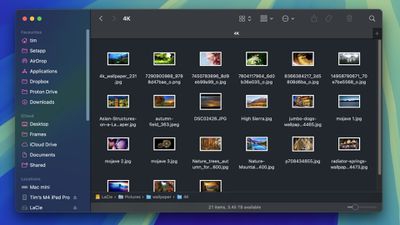
finder images folder
In this article, we'll show you how to use the macOS Automator app to create a very simple Folder Action that will automatically convert images dropped into a specific folder, without you having to manually apply a Quick Action or open an image editing app. Keep reading to learn how it's done.

How to Create an Image Converting Folder in Automator

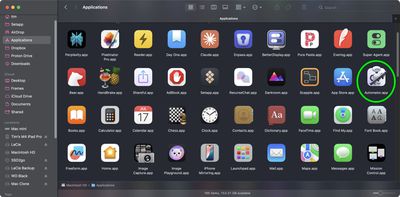
  1. Launch Automator from the Applications folder.
    finder automator

  2. Click New Document.
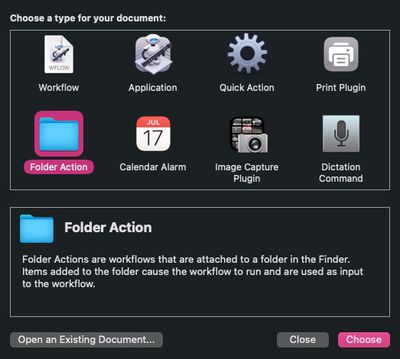
  3. Choose Folder Action as the type of your document.
    automator

  4. At the top of the workflow area, click the dropdown next to Folder Action receives files and folders added to: then select Other....
    automator

  5. Select the folder that you'd like to attribute the image conversion action to. In our example, we're choosing the Downloads folder.
  6. From the Library sidebar on the far left, select Photos.
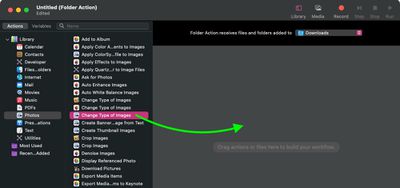
  7. From the Actions column, drag Change Type of Images (the one with the Preview icon) to the workflow area.
    automator

  8. A dialog prompt will appear. If you want your action to convert copies of images placed in the folder and preserve the originals, select Add. If you want it to convert the original images, select Don't Add.
  9. In the Change Type of Images action panel, choose the type of format that you want images to be converted to. We're selecting JPG.
    automator

  10. In the Automator menu bar, select File -> Save... or press Command-S, call your new file action "Convert Image," then click Save.
That's all there is to it. Next time you want to convert an image into your preferred format, simply drag it into the folder that you assigned the action to.

Now that you know how to create the image conversion workflow in Automator, you may want to turn it into a standalone "Application," the option for which you can find in Automator's document menu. An "Application" is a self-running workflow that acts as a droplet – any files or folders dropped onto it are used as input to the workflow. In other words, you could add an "Application" to your Dock and drop images onto it for conversion.

You can also import Automator workflows into the Shortcuts app. Shortcuts can convert most Automator workflows into shortcuts that carry out the same functions, events and automations — you simply drag a workflow file into Shortcuts and the conversion happens automatically.


Top Rated Comments

e-coli Avatar
17 months ago
More of this content, please. Genuinely useful!
Score: 12 Votes (Like | Disagree)
chucker23n1 Avatar
17 months ago
Yup, Folder Actions are one of those hidden cool things in macOS.
Score: 9 Votes (Like | Disagree)
chucker23n1 Avatar
17 months ago

What is the oldest mac os that can do this?
No idea this was a thing... it is a chore having to use ezgif or similar for this stuff!
Folder Actions appeared in Mac OS 8.5 in 1998.
Score: 5 Votes (Like | Disagree)
kirky29 Avatar
17 months ago
I do it all the time to convert those stupid and annoying webp files into jpgs. What a stupid and annoying format. /rant over.
Score: 5 Votes (Like | Disagree)
arkitect Avatar
17 months ago
Thank you!

Genuinely useful.

I have been using Macs for the past… yikes! going on 4 decades and never knew about this.

👍
Score: 5 Votes (Like | Disagree)
17 months ago
A useful article! Thank you! I mean, the site is dedicated to rumors, but this is a welcome change.
Score: 3 Votes (Like | Disagree)

Popular Stories

iCloud iPhone 17 Pro

iPhone Users Who Pay for iCloud Storage Get Two New Perks on iOS 27

Thursday July 2, 2026 6:10 am PDT by
If you pay for certain iCloud+ storage plans beyond the 5GB that Apple offers for free, you will receive two more perks on iOS 27 at no additional cost. A summary of the two new iCloud+ perks on iOS 27:Increased daily usage limits for some new Apple Intelligence features, including image generation in the revamped Image Playground app. HomeKit Secure Video cameras receive generated video...
iPhone 4 on Black Feature

Apple Facing One of Its Worst Leaks Since the iPhone 4

Thursday July 2, 2026 9:53 am PDT by
Apple supplier Tata Electronics recently suffered a cyberattack that resulted in thousands of confidential files being published on the dark web, and this reportedly included some photos and documents related to the upcoming iPhone 18 Pro. We have elected not to share any of the leaked photos in this story due to the illegal nature in which they were obtained, but they can easily be found...
Apple Event Logo

Apple Just Released a New Product

Thursday July 2, 2026 8:04 am PDT by
Apple's first product release of summer 2026 occurred this week, but do not get too excited, as it is merely the Beats Solo Buds in a new color. Beats Solo Buds are now offered in orange through Best Buy in the U.S., with availability set to expand to 7-Eleven stores in Japan on July 4. Apple already offered orange Solo Buds in India for free with the purchase of an iPhone 15 or iPhone 15 ...