How to Use Your Mac's Media Keys to Adjust Speaker Volume on a DisplayPort, HDMI, or Thunderbolt Monitor - MacRumorsOpen MenuShow RoundupsShow Forums menuVisit ForumsOpen Sidebar
Skip to Content

How to Use Your Mac's Media Keys to Adjust Speaker Volume on a DisplayPort, HDMI, or Thunderbolt Monitor

by

If you connect your Mac to an external display, you may find that the Mac's on-screen and keyboard volume controls are disabled. That's because HDMI, DisplayPort, and Thunderbolt connections carry a fixed volume digital audio signal, so the external device (in this case, a monitor) controls the sound level.

mac volume disabled
This can be frustrating if the volume controls on your external display are concealed in the bezel or buried in a fiddly on-screen menu. Fortunately, it is possible to re-enable your Mac's native volume controls and use them to adjust the sound level coming out of your monitor's speakers. The steps below show how it's done, although you will need administrator privileges to follow them.

  1. Download the free SoundFlower extension (v2.0b2) from Github.
    enable mac volume control of external monitor speakers00

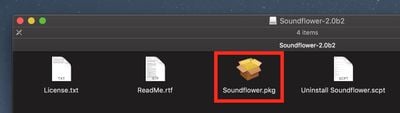
  2. double-click the SoundFlower.dmg file to mount it.

  3. Hold down the Ctrl key and left-click the Soundflower.pkg file, then choose Open from the contextual menu.
    enable mac volume control of external monitor speakers1

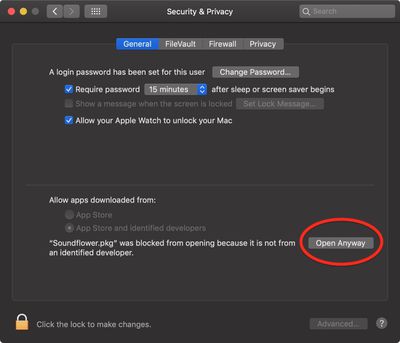
  4. If you see a dialog asking if you're sure you want to open it, click Open. If you see a dialog saying the package can't be opened, click OK, open System Preferences' Security & Privacy pane, and in the General tab click Open Anyway.
    enable mac volume control of monitor speakers 3

  5. Let the Soundflower installer continue and enter your password if necessary.
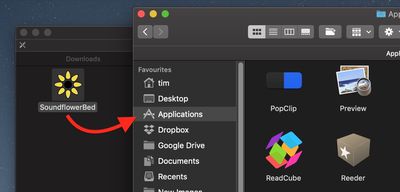
  6. Next, download the SoundflowerBed utility (v2.0), mount the .dmg file, and drag the flower icon to your Applications folder.
    enable mac volume control of external monitor speakers3

  7. Launch the SoundflowerBed utility.
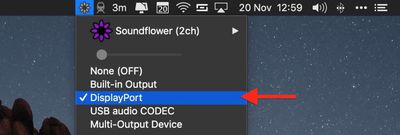
  8. Click the SoundflowerBed icon in the menubar and select DisplayPort, Thunderbolt or HDMI as the output in the (2ch) list.
    enable mac volume control of external monitor speakers04

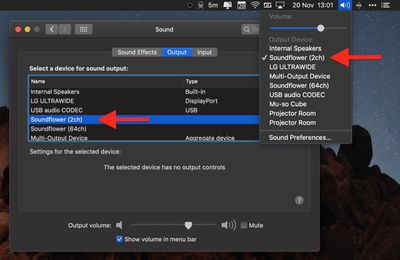
  9. Click the volume icon in the menu bar and choose Soundflower(2ch). You can also make this selection in the Sound System Preference pane.

    enable mac volume control of external monitor speakers5

You should now be able to adjust the volume of the speakers in your HDMI or DisplayPort monitor using the native media controls on your Mac.


Top Rated Comments

99 months ago
I installed this once 10 years ago and it conflicted with other audio apps. It took me 5 years to figure out what the problem was and get rid of the driver (by finally doing a clean install). Never again.
Score: 5 Votes (Like | Disagree)
99 months ago
Apple really should add native support for this in macOs. Every other OS (at least Linux and Windows) are able to adjust the volume when audio is delivered over HDMI/DP.
I’m waiting for this functionality to be added since forever...
Score: 4 Votes (Like | Disagree)
54 months ago
2022 here, use MonitorControl https://monitorcontrol.app. I went from SoundFlowerBed to this and it does it job great.
Score: 3 Votes (Like | Disagree)
78 months ago
I used and appreciated Soundflower for years, but it quit working when I upgraded to High Sierra, and it doesn't appear to be supported anymore. I tried something called blackhole, but I couldn't get it to work, so I downloaded the 15 dollar sound control app mentioned by pizzapizza, and it works perfectly with my HDMI display.

Being able to control the sound output from the keyboard controls is so obvious that it is impossible to understand why Apple seems to go out of their way to inhibit this.
Score: 3 Votes (Like | Disagree)
falcn Avatar
96 months ago
And, it works with the standard Mac volume keys. The only thing that's not perfect is the volume range. When it's at the lowest volume, it's not quite as low as I might want it.
Just installed this and it seems to be working well for me. As BobMcBob mentioned the volume control range is not as expansive as I would prefer, but volume control from my keyboard is back, so I am happy.

It is on sale at the moment so I bought a license after downloading and installing the trial version.

Thanks for the tip!
Sorry for late reply, I don't visit macrumors often.
You can go lower than one notch of volume, hold Shift+Option+[your volume key]. It's stock Mac OS feature.

A similar problem is adjusting the brightness on an external monitor. The standard Mac brightness keys don't work. I installed Brightness Slider from the app store. It's not bad, but it doesn't use the normal brightness keys. You can set your own keyboard shortcut, but you can't use the normal brightness keys. Does anyone have a better solution for that?
I use free app called Lunar https://lunarapp.site
It works if your external monitor supports DDC (most of them do)
It mirrors your internal screen brightness level on your external screen, which is great if you have auto-adjust on.
Score: 3 Votes (Like | Disagree)
99 months ago
I installed this once 10 years ago and it conflicted with other audio apps. It took me 5 years to figure out what the problem was and get rid of the driver (by finally doing a clean install). Never again.
The need for this hack demonstrates Apple's lack of forethought both in its hardware and in its software.

I personally would not bother with this since it can cause more problems than it solves.
Score: 3 Votes (Like | Disagree)

Popular Stories

Aston Martin CarPlay Ultra Screen

Apple Says CarPlay Ultra is Coming to These Vehicle Brands

Thursday May 21, 2026 11:53 am PDT by
Last year, Apple launched CarPlay Ultra, the long-awaited next-generation version of its CarPlay software system for vehicles. Nearly a year later, CarPlay Ultra is still limited to Aston Martin's latest luxury vehicles, but that should change fairly soon. In May 2025, Apple said many other vehicle brands planned to offer CarPlay Ultra, including Hyundai, Kia, and Genesis. CarPlay Ultra...
iphone 18 pro blue%402x

iPhone 18 Pro: Dark Cherry, Light Blue, and Dark Gray Chassis Leaked [Update]

Thursday June 4, 2026 5:18 am PDT by
Update: Since publication, new information has come to light suggesting the images have been AI-manipulated and are not in fact iPhone 18 Pro chassis parts. The original article follows. The color options Apple is reportedly planning for the upcoming iPhone 18 Pro and ‌iPhone 18 Pro‌ Max have appeared online today in the form of images of chassis parts of unknown authenticity....
iOS 27 All the New App Features

iOS 27: All the Rumored App Features

Wednesday June 3, 2026 3:48 pm PDT by
Siri is getting a major overhaul in iOS 27, but Apple also has some big updates planned for apps like Camera, Photos, and Wallet. There are multiple new AI features in the works, plus some non-AI upgrades. Camera Apple is moving Visual Intelligence from the Camera Control button to the Camera app in iOS 27, according to Bloomberg. There will be a Siri mode that will be available alongside...