

Apple's watchOS 5 update includes a new Siri feature that eliminates the need to say "Hey Siri" or push the Digital Crown to activate the personal assistant.
Instead, you can raise your wrist and speak right to Siri, with the Apple Watch able to detect your movements and your desire to relay a Siri command. It's simple to enable, and it works well once you know a few tricks.
Enabling Raise to Speak
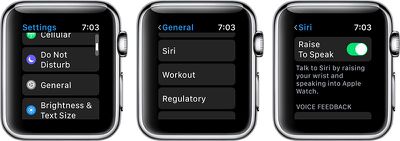
- Open the Settings app.
- Choose "General."
- Scroll down to "Siri" and Tap it.
- Make sure "Raise to Speak" is toggled on.
You can leave "Hey Siri" enabled right alongside "Raise to Speak," and use whichever Siri activation method is most convenient.
Using Raise to Speak
Using Raise to Speak is as simple as raising up your wrist and speaking into your Apple Watch.
Lift your wrist as you would to view the time or do any other Apple Watch activity, and then speak a command. Most people will find that they need to bring the watch a little closer to their face than they would just to view it, so if you can't get Raise to Speak to work, hold your wrist closer to your mouth.
Raise to Speak is a slightly different gesture than just raising your arm to look at the time, and the Apple Watch can tell the difference in intent.
Raise to Speak Tips
- Raise to Speak needs to be fairly close to your face to interpret a Siri voice command, which prevents it from automatically activating for the most part. If it's not working, bring your wrist closer to the speaker of the Apple Watch before trying a command.
- Raise to Speak works both at the watch face and when an app is open. It does need to be activated with the wrist raising gesture, though.
- You need to speak at a normal speaking volume for the watch to detect a Raise to Speak command. Whispering will not work.
- Because Raise to Speak seems to rely on proximity to the Apple Watch's speaker, Siri is not going to trigger when other people are speaking.
Other Siri Options
In the Siri section of the Settings app, accessible by following the steps above, you can also choose your Voice Feedback settings for whenever Siri is activated if you have an Apple Watch Series 3.
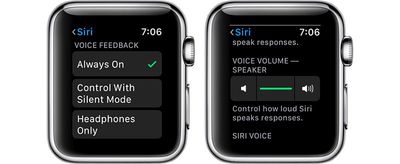
This isn't a new setting, but it's worth revisiting alongside Raise to Speak. You can choose to set Voice Feedback (aka vocal replies) to "Always On," "Control With Silent Mode," which will silence Siri if Silent Mode is turned on, or Headphones Only, which will cause Siri to provide vocal replies if you're wearing AirPods or other Bluetooth enabled headphones.
You can also set Siri's voice volume in the same section of the Settings app by tapping the volume icons or using the Digital Crown. This sets Siri's overall response volume when the personal assistant responds to queries aloud.
Raise to Speak is a useful feature on Apple Watch for everyone, but especially for HomePod owners. If you want to activate Siri on your watch, you can now do so without accidentally triggering a HomePod that might be in the room with the "Hey Siri" command.















Top Rated Comments
Not everyone lives in the beta world. Of course I do. Just not on my watch. ;)
2nd - Speak
...