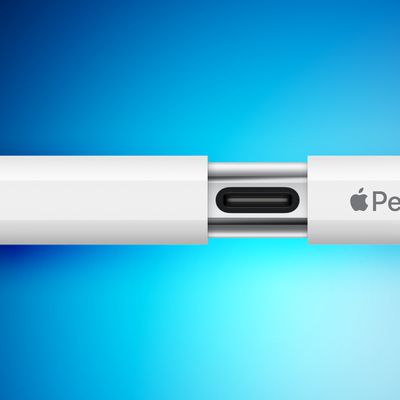
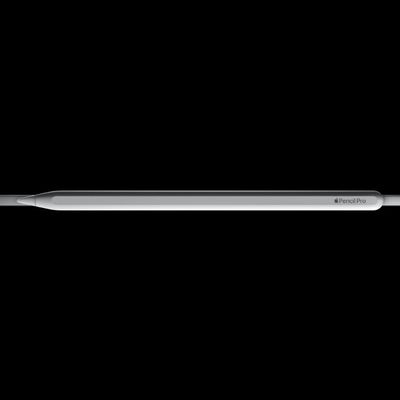
Apple's latest Apple Pencil Pro is the first major revision to the Apple Pencil lineup since the 2018 launch of the Apple Pencil 2.
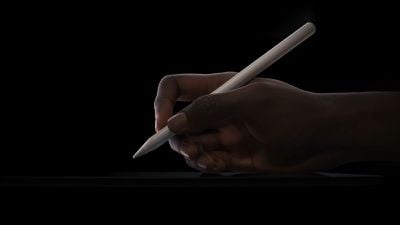
Alongside staple Apple Pencil features like low latency, tilt sensitivity, and pressure sensitivity, Apple Pencil Pro additionally includes a new squeeze gesture, gyroscope, haptic feedback, Find My support, and more. Keep reading to learn how to use them.
Supported Devices
First of all, it's important to know that Apple Pencil Pro does not work with iPads that were launched before 2024. The Apple Pencil Pro is compatible with the M2 iPad Air models and the M4 iPad Pro models, so as of writing, it only works with the May 2024 iPads.
- M2 iPad Air 11-inch
- M2 iPad Air 13-inch
- M4 iPad Pro 11-inch
- M4 iPad Pro 13-inch
Pairing and Charging
The Apple Pencil Pro attaches to the side of the iPad Pro or the iPad Air, and the magnetic connection makes pairing and charging the accessory super-easy.
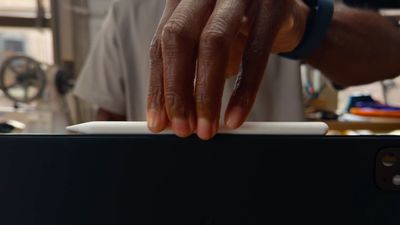
Ensure your M4 iPad Pro or M2 iPad Air is on and unlocked, then simply place the Apple Pencil Pro against the magnet along the side of your iPad, and tap Pair when the onscreen prompt appears.
Squeeze Gesture
Exclusive to Apple Pencil Pro is a new squeeze gesture that allows it to sense when pressure is applied to the sides of the device. This action performs the assigned function, and also provides haptic feedback so you know it has been triggered.
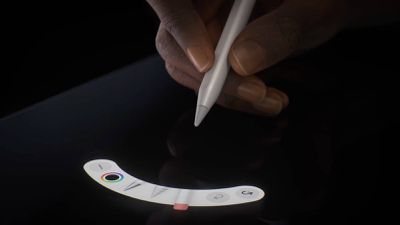
By default, Squeeze invokes the tool palette in the app you are using (Apple Notes and Freeform, for example), but you can change what the Squeeze gesture does, and you can even trigger a shortcut with it.
- Open the Settings app.
- Select Apple Pencil.
- Tap Squeeze.
- Choose between the following functions: Show Tool Palette, Switch Between Current Tool and Eraser, Switch Between Current Tool and Last Used, Show Color Palette, Show Ink Attributes, Shortcut, and Off.
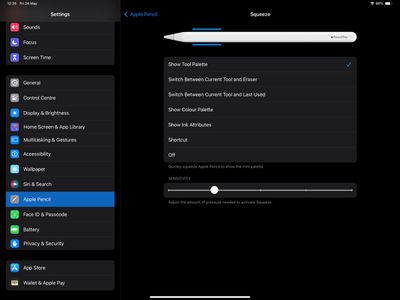
Note that you can also adjust Squeeze sensitivity from this screen, so you can lower it if you tend to trigger it unintentionally.
Barrel Roll
One of the significant enhancements in the Apple Pencil Pro compared to its predecessor is the barrel roll feature. This utilizes a gyroscope in the Pencil Pro, enabling the barrel's rotation to alter the orientation of specific tools. It provides more precise control over shaped pen and brush tools, mimicking the natural function of a real pen or brush when tilted during drawing or sketching.
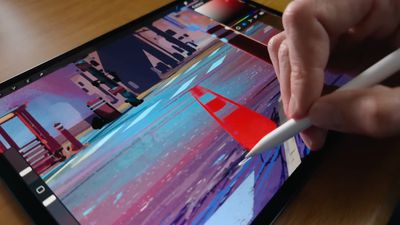
To activate barrel roll, simply rotate the Pencil Pro while using a compatible app like Notes or Freeform. This feature works particularly well with non-circular brushes and the "Hover" feature: Hover the Pencil tip near the screen without touching it, and you will see the precise angle of contact as you rotate the brush or pen.
Find My
Apple Pencil Pro supports Find My, so it can be tracked right alongside the iPad and other devices in the Find My app. Note that unlike some Apple devices which have an Ultra Wideband chip, Apple Pencil Pro simply uses Bluetooth to pinpoint its location via Find My.
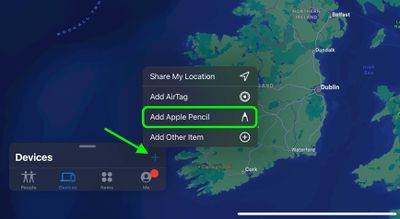
An option to add Apple Pencil Pro should appear onscreen during the initial pairing process, but if you can't find Apple Pencil Pro in the Find My app after pairing, you can connect it manually like so:
- Open the Find My app.
- Tap the plus (+) symbol.
- Choose Add Apple Pencil.
Double-Tap
The Double-Tap feature that debuted with the Apple Pencil 2 is also supported by Apple Pencil Pro, and allows you to perform various actions such as showing a color palette or switching to the tool you last used.
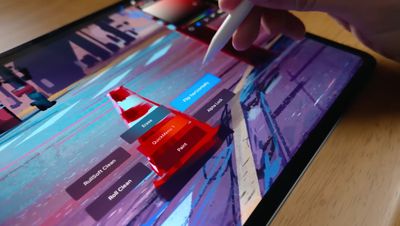
Double-Tap can also be used to select items without touching the screen. Simply hover the Apple Pencil over options and make a selection by tapping twice on its side.
To change the function of Double-Tap, follow these steps:
- Open the Settings app.
- Select Apple Pencil.
- Tap Double-Tap.
- Choose from the following actions: Switch Between Current Tool and Eraser, Switch Between Current Tool and Last Used, Show Color Palette, Show Ink Attributes, and Off.
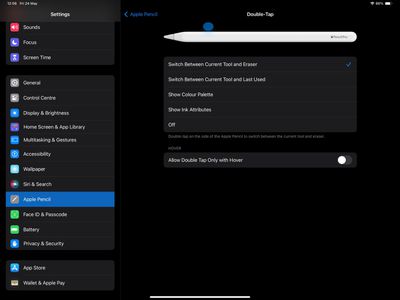
Note that this screen also includes an option to Allow Double Tap Only with Hover.
Supported Apps
While Apple's iPad apps are ready to go with Apple Pencil Pro, it's important to note that third-party app developers need to add support for the new accessory before they will work. As of writing this, only a handful of apps have been updated with Apple Pencil Pro support, but more are sure to get on board in the very near future.