How to Use Instant Markup to Quickly Edit Screenshots - MacRumorsOpen MenuShow RoundupsShow Forums menuVisit ForumsOpen Sidebar
Skip to Content

How to Use Instant Markup to Quickly Edit Screenshots

by

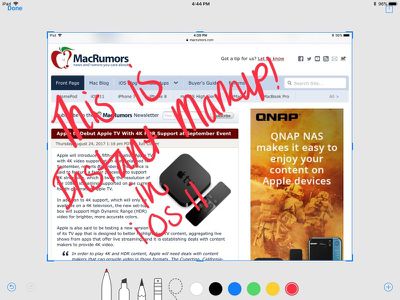
When you take a screenshot in iOS 11 or later, there's a new feature that's designed to let you open it right up and edit it with Apple's Markup tools.

Using the screenshot editing feature, you can capture what's on the screen of your iPad or iPhone and then add text, crop, highlight specific areas, and more.

Using Instant Markup

  1. Press the Home button and the sleep/wake button simultaneously to capture a screenshot.
  2. A preview of the screenshot will pop up in the lower left of the display. Tap it to open up the Instant Markup interface. You'll have about five seconds before it disappears.ipadscreenshoteditingios11
  3. Use a finger to adjust the blue outline if you want to crop your image.
  4. Choose a pen/marker/pencil and a color and then draw with a finger or the Apple Pencil (on iPad Pro) to edit your screenshot. instantmarkupinterface

If you take multiple screenshots at once, they'll all be displayed in Instant Markup and you can swipe between them.

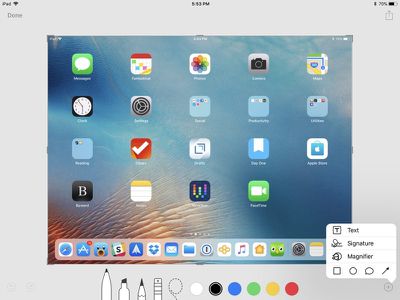
There are all kinds of tools in Instant Markup, including a pen, pencil, highlighter, eraser, drop shadow tool, crop, multiple pen colors, and undo/redo.

instantmarkupinterfaceios11
To access even more tools, tap on the "+" button. This gives you access to a text entry field, a signature tool to add a signature to a screenshot, a magnifier tool, and various shapes.

Saving, Sharing, or Deleting an Edited Screenshot

When you're done editing your screenshot, you can save it to photos, delete it, or share it.

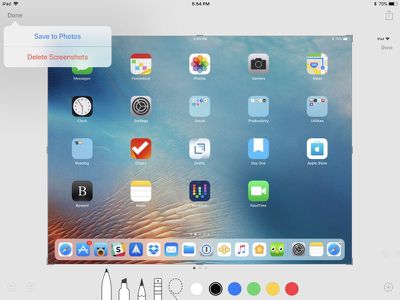
  1. To save a photo or delete it, tap the "Done" button in the upper left of the iPad's display and then choose the appropriate option.instantmarkupios11savetophotos
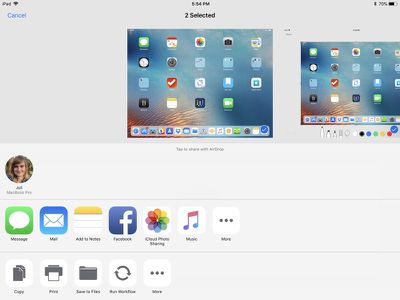
  2. To share, tap on the Share Sheet icon at the upper right of the display, which will pop up icons to share the screenshot in an iMessage, email, or social network. instantmarkupscreenshotshareios11
  3. The Share Sheet also includes options to save the screenshot to the Files app, add it to the Photos app, and more.

Instant Markup is a feature that's present on the iPhone and the iPad in iOS 11. There is no way to turn it off at the current time, so if you dislike those little screenshot popups, the only option is to wait the few seconds for them to disappear or swipe them away to the left of the display.

Related Forums: iOS 11, iPad Accessories

Top Rated Comments

Xavier Avatar
113 months ago
Such a useful feature!
Score: 4 Votes (Like | Disagree)
cecil444 Avatar
113 months ago
The markup feature existed before, you just had to dig a little to use it. Now it's super easy.

One odd note: the screenshot preview feature turned off for me somehow and I can't get it to reappear. I've been testing iOS 11 on a 6S (it's been a crazy battery hog... like horrendous, for the last couple days... hoping it gets better or a fix is issued soon). The first screenshot I took showed the preview and I was able to view and markup the image as described. But every screenshot since has (1) failed to show me the preview of the screenshot -- it just drops it in my photos as with iOS 10; and (2) failed to "blink" the screen indicating that a screenshot was successfully taken. With the sound on I do hear the camera shutter sound, but the screen no longer "blinks" as it always used to. Anyone else experiencing this same issue?
Score: 3 Votes (Like | Disagree)
wolfshades Avatar
113 months ago
Does this only work with screenshots? Or can you use those tools on your saved photos?
Yes they are. Go into Photos, Edit, click on the ellipses (the "more" button) and then hit Markup, and you should be good to go.
Score: 2 Votes (Like | Disagree)
Carlos Adell Avatar
74 months ago

Try a reboot on ipad.
Yes did that too, still not working. Thanks for helping bro!
Score: 1 Votes (Like | Disagree)
macguruireland Avatar
113 months ago
When you take a screenshot in iOS 11, there's a new feature that's designed to let you open it right up and edit it with Apple's Markup tools.

Using the screenshot editing feature, you can capture what's on the screen of your iPad or iPhone and then add text, crop, highlight specific areas, and more.

Using Instant Markup

[LIST=1]
* Press the Home button and the sleep/wake button simultaneously to capture a screenshot.

* A preview of the screenshot will pop up in the lower left of the display. Tap it to open up the Instant Markup interface. You'll have about five seconds before it disappears.

MacRumors content image


* Use a finger to adjust the blue outline if you want to crop your image.

* Choose a pen/marker/pencil and a color and then draw with a finger or the Apple Pencil (on iPad Pro) to edit your screenshot.
MacRumors content image

If you take multiple screenshots at once, they'll all be displayed in Instant Markup and you can swipe between them.

There are all kinds of tools in Instant Markup, including a pen, pencil, highlighter, eraser, drop shadow tool, crop, multiple pen colors, and undo/redo.
MacRumors content image

To access even more tools, tap on the "+" button. This gives you access to a text entry field, a signature tool to add a signature to a screenshot, a magnifier tool, and various shapes.

Saving, Sharing, or Deleting an Edited Screenshot

When you're done editing your screenshot, you can save it to photos, delete it, or share it.
[LIST=1]
* To save a photo or delete it, tap the "Done" button in the upper left of the iPad's display and then choose the appropriate option.
MacRumors content image


* To share, tap on the Share Sheet icon at the upper right of the display, which will pop up icons to share the screenshot in an iMessage, email, or social network.
MacRumors content image


* The Share Sheet also includes options to save the screenshot to the Files app, add it to the Photos app, and more.
Instant Markup is a feature that's present on the iPhone and the iPad in iOS 11. There is no way to turn it off at the current time, so if you dislike those little screenshot popups, the only option is to wait the few seconds for them to disappear or swipe them away to the left of the display.

Article Link: How to Use Instant Markup to Quickly Edit Screenshots in iOS 11 ('https://www.macrumors.com/how-to/instant-markup-edit-screenshots-ios-11/')
[doublepost=1506036921][/doublepost]Has anybody found the way to increase the thickness of the pen tool?
Score: 1 Votes (Like | Disagree)
I7guy Avatar
113 months ago
I like these “how to’s”. Keep em coming.
Score: 1 Votes (Like | Disagree)

Popular Stories

Apple Card iPhone 16 Pro Feature

Apple Card Promo to Offer Free AirPods Pro 3

Friday May 15, 2026 8:59 am PDT by
Starting as early as next week, customers who sign up for an Apple Card at Apple's retail stores in the U.S. will receive $249 cash back when they purchase AirPods Pro 3, according to Bloomberg's Mark Gurman. The promotion has yet to be officially announced by Apple, so exact terms and conditions are not available at this time. AirPods Pro 3 are priced at $249 in the U.S., so customers who...
Apple WWDC25 iOS 26 CarPlay Light mode 250609

Six Popular iPhone Apps Now Available on CarPlay

Thursday May 14, 2026 9:10 am PDT by
Apple's CarPlay system for accessing iPhone apps on a vehicle's dashboard screen has received six popular apps in recent weeks: ChatGPT, Perplexity, Grok, Google Meet, WhatsApp, and the indie artist streaming platform Audiomack. Make sure you have the latest version of each app and they will automatically appear on CarPlay. ChatGPT Starting with iOS 26.4, CarPlay supports voice-based...
ipad mini 7 blue

OLED iPad Mini: Release Date, Pricing, and What to Expect

Thursday May 14, 2026 5:08 am PDT by
According to the latest rumors, Apple is close to launching its next-generation iPad mini. So what should we expect from the successor to the iPad mini 7 that Apple released over a year ago? Read on to find out. Processor and Performance Apple is working on a next-generation version of the iPad mini (codename J510/J511) that features the A19 Pro chip, according to information found in code...