The long-awaited iOS 18 update is now available for everyone to download, and there are hundreds of new features and changes for you to learn about. Some of the additions require a little bit of setup to get up and running, so we've created this guide that walks you through the features you should check out first after updating to iOS 18.
Set Up Your Home Screen
The Home Screen has several design changes that allow for more customization and personalization. You can put icons where you want, change their size and change their colors.
Get started by moving your icons and adding spaces around wallpapers if you like. You can have spaces around icons and widgets, creating unique looks. There's still a grid system so an icon can't go just anywhere, but it can go anywhere on the grid, with empty spaces permitted.
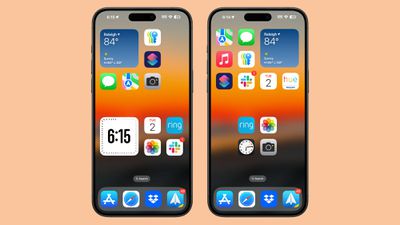
After you've rearranged icons, long press on the Home Screen, tap Edit, and then choose Customize. From this interface, you can make app icons bigger by removing the app names, toggle on Dark Mode icons, or even change the tint of icons to match your wallpaper.
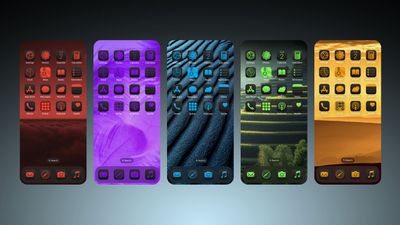
You'll want to take a look at our full Home Screen guide to get details on everything you can do.
Set Up Control Center
The Control Center interface is much more customizable, and you can reorder your controls, put them on different pages, and even access them from the Lock Screen and Action Button. There's a whole Controls Gallery, complete with support for controls for third-party apps.
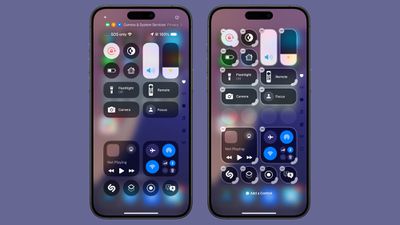
To set up your Control Center, swipe down from the upper right corner of your iPhone and long press on any empty space until the grid shows up, or tap on the "+" button at the upper left of the display.
From there, grab an icon and move it to where you want it to be. You can move it on the same page, or drag it to a new page. Like the Home Screen, you can have empty spaces. You can have a different page for related controls like music and home, or mix them all up. Drag on the corner of an icon to change its size.
In this same editing interface, tap on "Add a Control" to get to the Controls Gallery, where you'll see all your Control Center options organized by category.
If you want a few other tips and tricks on using the new Control Center, check out our guide.
Hide and Lock Apps
If you have to hand over your unlocked iPhone to a partner, child, or friend, you can now do so knowing that apps can be locked and hidden, requiring Face ID to access.
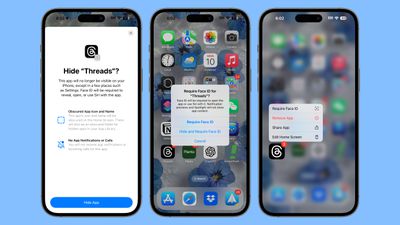
To lock or hide an app on the Home Screen, long press on the app icon, tap "Require Face ID," and then choose either Require Face ID or Hide and Require Face ID.
Adding the Require Face ID option only locks an app and you'll need to enter a passcode or scan your face when trying to open it. Opting in to hiding an app as well removes it from the Lock Screen and all other places on the iPhone, and it will only be accessible from a locked Hidden Apps folder in the App Library.
Change Your Lock Screen Buttons
You know the Camera and Flashlight icons that have been on the Lock Screen forever? You can now swap them out or even remove them.
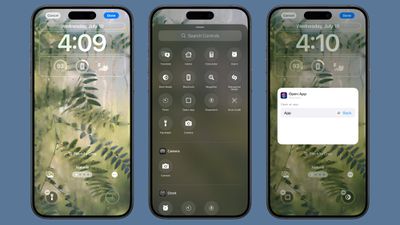
From the Lock Screen, long press, tap on Customize, select Lock Screen, and then tap the "-" buttons on the Camera and Flashlight to remove them. You can stop there, or tap on the "+" button to add other Control Center buttons, like turning on Dark Mode or starting a Voice Memo.
You can even add third-party controls here.
Organize the Photos App
There are no more tabs in the Photos app because Apple introduced a new unified design. To get to different sections like Memories and albums, you just scroll down in the app.
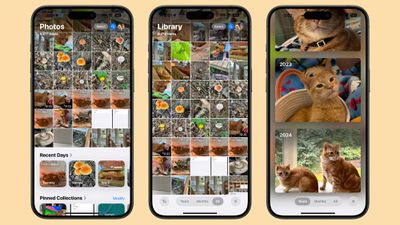
The Photos app is now organized into "Collections," and you can customize which collections you see and where they're located in the Photos app interface. To organize your collections, scroll down to the bottom of the Photos app, and tap on Customize and Reorder.
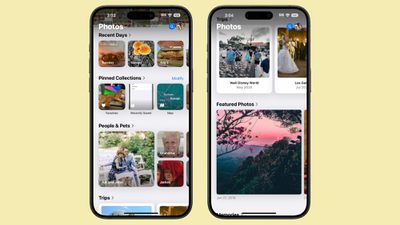
You can also pin content that you want to add to Collections. Scroll down to Pinned Collections and tap on "Modify" to make changes.
The new Photos app can take some getting used to, so if you need more instruction, we have a Photos guide that walks through all of the changes.
Check Out the Passwords App
Apple added a new Passwords app to the iPhone, iPad, and Mac to make it easier to get to your stored iCloud Keychain logins and passwords. It basically offers the same functionality as the Passwords section of the Settings app, but it's been moved into a separate app.
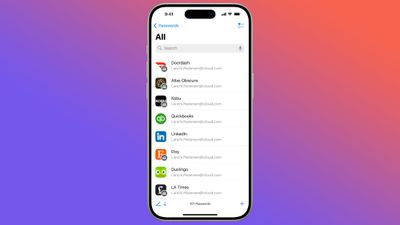
Passwords are automatically added to the app when you save a login or password when logging into a website, and it will already feature all of your logins and passwords if you use iCloud Keychain.
There are warnings for weak passwords, reused passwords, and compromised passwords, along with support for passkeys and sharing passwords.
Get more info on the Passwords app in our dedicated guide.
Try Safari Distraction Control
Distraction Control is a new Safari feature that cuts down on distracting elements on webpages like sign-in windows, cookie preference popups, GDPR notices, and newsletter signup banners. It cannot be used to remove ads, but it can block a lot of annoyances.

To use it, navigate to any webpage. Go to the Page Menu and select Hide Distracting Items. From there, tap on any element on the page that you want to hide. You can hide anything that's static. To unhide something, just go back to the Page Menu and tap Show Hidden Items.
Note: If you don't see the Hide Distracting Items option, tap on the three dots at the bottom of the menu then tap Edit to add it to the Page Menu.
There are other neat new additions in Safari like the Highlights feature for pulling up what you want to see first from a website, so for a deeper overview of the new Safari features, check out our Safari 18 guide.
Test Out Math Notes
iOS 18 has an interesting integration between the Calculator app and the Notes app called Math Notes. Math Notes solves equations automatically, so you can do things like add up your monthly budget, calculate what people owe you for a group trip, or split a restaurant bill.
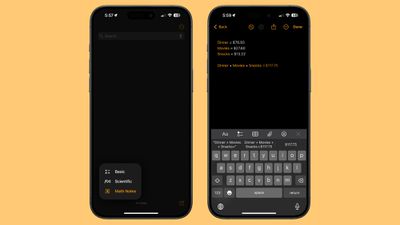
You can use Math Notes in the Notes app or in the Math Notes section of the Calculator app, plus it also works in apps like Messages. Any equation that you type in is automatically solved when you add an equals sign, and you can even use variables.
If you write dinner = $42, movies = $24, and dessert = $18 in the Notes app or in the Math Notes section of Calculator, you can then type in dinner + movies + dessert and add an equals sign to get the total. Variables can be used in equations and graphs (with a relevant equation) and adjusted later to change the results.
Math Notes supports unit conversions too, and it can solve all of the same functions as the scientific calculator.
Schedule a Message
Send Later is new in iOS 18, and you can use it to schedule a text up to two weeks in advance of when it's sent. If you know someone's birthday is coming up, for example, you can schedule a happy birthday text ahead of time so it's ready to go.
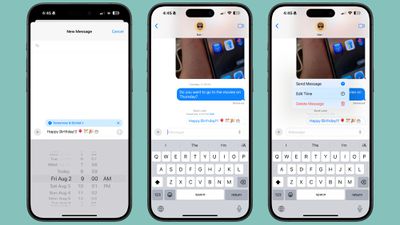
You can use Send Later in a conversation with any other iMessage user, and it works for both individual and group chats. To use it, open up a conversation, tap on the "+" button, tap on More, and then choose Send Later.
From there, type your message and then tap the blue bubble that defaults to Tomorrow 9:00 a.m. to use the slider to change the date and time. Tap the blue arrow to schedule your completed message.
You'll see the scheduled messages that you've created at the bottom of the conversation. If you want to change or delete something you've scheduled, just tap on the "Edit" button.
There are a bunch of changes in Messages that you won't want to miss, so make sure to check out our full Messages guide if you're interested.
Use iPhone Mirroring
iPhone Mirroring is a new iOS 18 feature that works when you also have a Mac running macOS Sequoia. There's a new iPhone Mirroring app on the Mac, and if you click it, you can access your iPhone from your Mac.
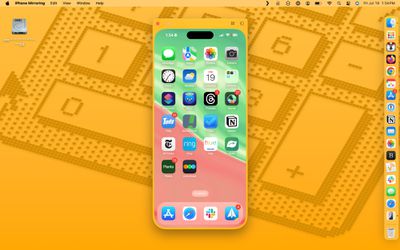
You'll need to authenticate the first time you use it, but from there, you can opt in to have it access your iPhone automatically when you use the iPhone Mirroring app on your Mac. You can use iPhone Mirroring even with your iPhone locked and tucked away, or positioned in StandBy mode.
iPhone Mirroring lets you access all of the apps and content on your iPhone from your Mac, including your iPhone notifications. Later, Apple even plans to let you drag and drop files from your iPhone to your Mac and vice versa with iPhone Mirroring, but that's not implemented yet.
Note that you need to start iPhone Mirroring from your Mac's iPhone Mirroring app, and it can't be initiated from the iPhone.
A Note About Apple Intelligence
At WWDC, Apple introduced a new set of Apple Intelligence features like Writing Tools, Genmoji, and Image Playground. Apple Intelligence is not in the launch version of iOS 18.
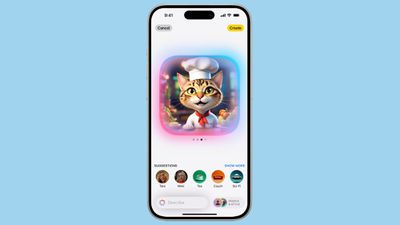
The first Apple Intelligence features will come in the iOS 18.1 beta that Apple is testing. iOS 18.1 includes Writing Tools, Siri's new design, Smart Replies in Messages and Mail, Memory Maker and Clean Up in Photos, and new ways for minimizing distractions with focus modes and notification summaries.
It will take Apple until next year to fully roll out the Apple Intelligence features that it showed off at WWDC, but you'll get to try some of them when iOS 18.1 launches. We expect to see iOS 18.1 debut in October.
Read More About iOS 18
For more on the new features that have been introduced in iOS 18, we have a comprehensive iOS 18 roundup.