 In iOS 14, Apple has added several new features to its native Messages app, including the ability to set a group photo for a multi-person chat.
Setting a photo for a group conversation brings a neat bit of customization to the Messages app and it lets you identify the chat in your conversations list more easily.
You can also give group chats a custom name, which combined with a group photo, can add a bit of fun to your conversations with friends and family, or mark out a chat with colleagues to indicate a specific work project.
Follow the steps below to set a group chat photo and name in Apple's Messages app.
- Launch the Messages app on your iPhone or iPad.
- Select a group chat from the conversations list.
- Tap the contact circles or the chevron next to the group name at the top of the conversation thread.
- Tap the Info icon that appears below the group conversation details.
- In the Details screen that appears, tap Change Name and Photo, which appears as blue text under the group's current name.

- The next screen gives you several options to set a group photo. From left to right, the blue icons on the top row let you take a photo with your camera, select a photo from your library, select an emoji, or use a two-letter initial to identify the group chat. The second row offers some recently used suggestions, and under the More title you'll see several emojis that you can tap for quick selection. If you select an emoji or initial, you can also set the Style (or background) of the circle that it appears in.
- To change the name of your group chat, tap the X next to the current name and type a new one.
- When you've selected a photo and name, tap Done in the top-right corner of the screen.
- Tap Done in the top-right corner once more to return to the chat thread.
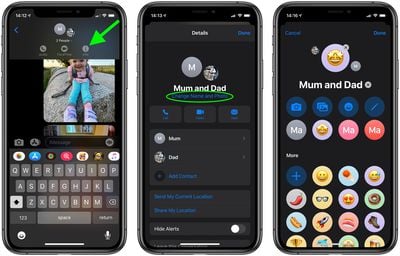

Once you've set your group photo, you'll see it in your main messages list as well as at the top of the group conversation, where people's profile circles orbit around it. Note that when you change the photo, everyone in the conversation will see the change and be alerted to it.