Instant Notes is a feature of Apple's stock Notes app that enables you to make a fast note or return to a recently viewed note, without even needing to unlock your iPhone or iPad.
It's a really handy function to use if you want to quickly jot down something and then go about the rest of your day, or if you want to add to an existing note or refer back to one on the fly that you created earlier.
Instead of unlocking your device, opening the Notes app, and then creating a document, with Instant Notes you can start typing almost immediately. And as you'd expect, when Apple designed Instant Notes, it also factored in security. So when you create a new note with it, you can't access other existing notes in the Notes app unless you unlock your iOS device first.
It's the same story when you set up the Instant Notes feature so that it always returns you to your last viewed note. You can even choose how much time elapses before the last viewed note is no longer accessible without unlocking your device.
Before getting started with Instant Notes, you need to add Notes to your device's Control Center. The following set of steps show you how. After that, we'll show you how to set up Instant Notes on an iPhone or iPad running iOS 11 or later, and then how you can use it.
How to Add Notes to the iOS Control Center
- Launch the Settings app on your iPhone or iPad.
- Tap Control Center.
- Tap Customize Controls.
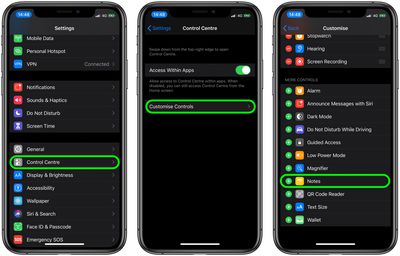
- Scroll down to More Controls.
- Tap on the "+" sign to the left of Notes to add it to Control Center.
How to Set Up Instant Notes on Your iPhone or iPad
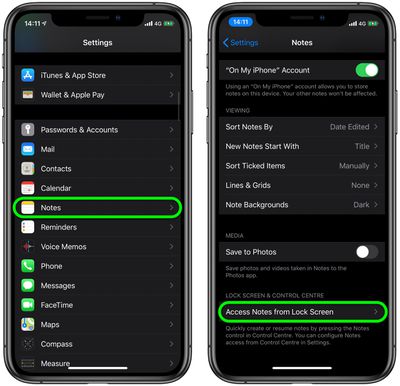
- Launch the Settings app on your iOS device.
- Scroll down and tap Notes.
- Scroll down and tap Access Notes from Lock Screen.

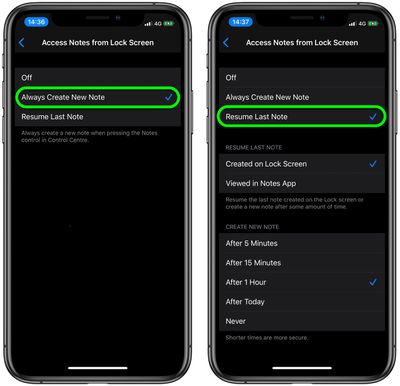
- If you always want to create a new note each time you use Instant Notes, tap Always Create a New Note. If you only want to use this option, you can skip ahead to the next set of steps.
- To keep returning to a note you created earlier, tap Resume Last Note, and you'll see more options revealed on the screen.
- To always resume the last note you created from the Lock screen, tap Created on Lock Screen. To always resume the last note you created from within the Notes app when your device was unlocked, tap Viewed in Notes App.
- The last series of options lets you set up Instant Notes so that it sends you to a new note from the Lock screen After 5 minutes, After 15 minutes, After 1 Hour, After Today, or Never. The shorter the time limit, the safer your note will be from potential prying eyes.
How to Use Instant Notes on iPhone and iPad
Now that you've set up Instant Notes on your device, it's time to use it as it's intended, i.e. when your device is locked. Here's how it works.
- Raise your device to wake the screen.
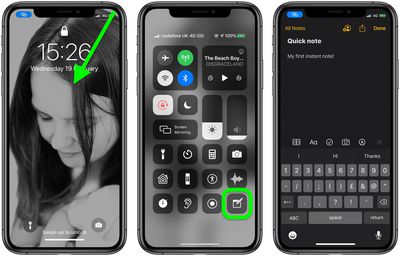
- Access the Control Center: On an iPad with a Home button, simply double-tap the Home button; on iPhone 8 or earlier, swipe up from the bottom of the screen; and on a 2018 iPad Pro or iPhone X and later, swipe down from the upper right corner of the screen.
- Tap the Notes button you added to the Control Center previously.
- Simply start typing your new note, or check and/or add to the last note you viewed, depending on how you set up the feature.
- Tap Done when you're finished, then sleep your device's screen.
That's all there is to it. You can also access Instant Notes on iPad using an Apple Pencil.