 One of the main benefits of using Apple's HomeKit framework is the ability to control your HomeKit-compatible devices when you're away from home.
For instance, if you are about to leave the office, you can use the Home app or ask Siri on your iPhone to increase the temperature of a connected thermostat at home so that it's nice and cozy when you arrive.
Before you can trigger actions when you're away from home, you need to designate a device as a home hub, which remains powered on and connected at your home when you're away. Click on one of the links below to learn how to set up an Apple device as a home hub.
- Set up HomePod as a HomeKit Home Hub
- Set up Apple TV as a HomeKit Home Hub
- Set up iPad as a HomeKit Home Hub
Controlling HomeKit Accessories Remotely
Once you've set up your home hub, you'll need to enable two-factor authentication on your iCloud account, otherwise you won't be able to remotely access your HomeKit accessories.
Once you've done that, you're ready to start controlling your HomeKit accessories when you're away from home. You can do this wherever you've got a data connection on your iPhone. Siri can be used to remotely access your accessories, as can the Home app. You can also set particular HomeKit scenes and accessories as "Favorites" so that you can access them quickly and easily from the app's Home tab and in Control Center on your iPhone or iPad.
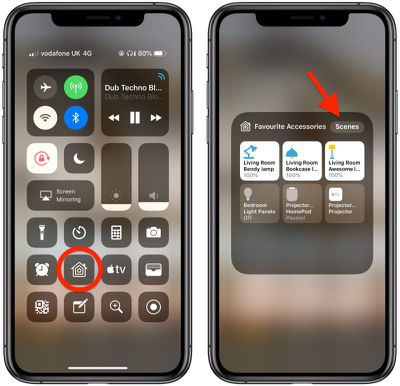
Once you've set up your favorites, you can access them from the Control Center like so.
- To open Control Center on an iPad with a Home button, double-tap the Home button; on iPhone 8 or earlier, swipe up from the bottom of the screen; and on a 2018 iPad Pro or iPhone X/XR/XS/XS Max, swipe down from the upper right of the screen.

- Press and hold the Home icon.
- You can switch between Favorite Accessories and Favorite Scenes using the relevant button at the top of this panel.
When you have a lot of HomeKit products, the built-in Favorites option is a great way to put the devices that you need to access most right on the main page of the Home app, such as lights and smart plugs.