

 Making a FaceTime call on your iPhone, iPad, or Mac costs nothing and is extremely easy to do, and if you're camera shy, you can even make an audio-only call. If you've never used FaceTime before to get in touch with someone, here's all you need to know to get going.
Every iPhone, iPad, iPod Touch, and Mac comes with a built-in FaceTime app, so you don't need to install anything. All you need to call someone is a Wi-Fi or cellular data connection.
Remember that the person you want to call can be located almost anywhere in the world, but they need to own an iOS device or a Mac and to have set up a FaceTime account of their own.
How to Make a FaceTime Call on iPhone and iPad
- Launch the FaceTime app on your iPhone or iPad.
- Tap the plus (+) button.
- Type in the name, email address or number that you want to call. As you type, your Contacts list will be searched and any matching contacts will appear below. You can tap to select the person you want to call. Alternatively, tap the circled plus (+) button to select someone from your Contacts to call.

- Tap the Audio button to initiate the call.
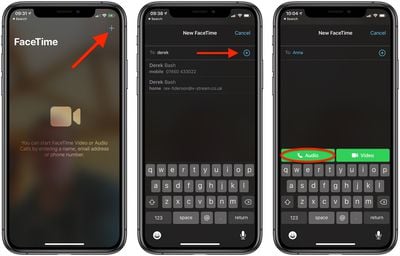
If the Audio button is greyed out, the contact you are trying to call doesn't have FaceTime enabled or hasn't set up a FaceTime account.
How to Make a FaceTime Call on Mac
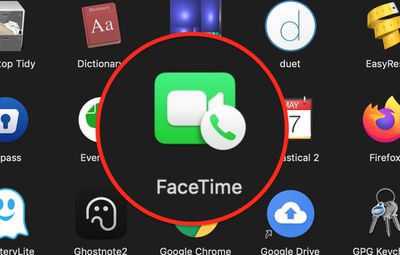
- Launch the FaceTime app on your Mac, from your Dock or the Applications folder.
- Type in the name, email address or number that you want to call. As you type, your Contacts list will be searched and any matching contacts will appear in a dropdown list – you can use the Down arrow on your keyboard or click to select the person you want to call.
- Tap the Audio button to initiate the call.
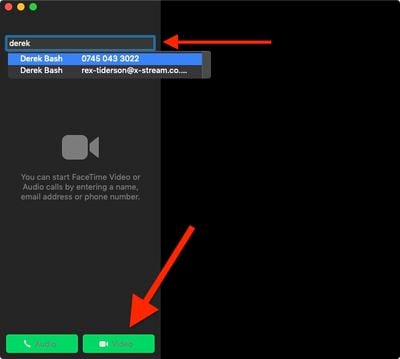
If the Audio button is greyed out, the contact you are trying to call has disabled FaceTime or hasn't set up a FaceTime account.



















