

This tutorial explains how to force restart or hard reset Apple's second-generation iPhone SE (2020) and third-generation iPhone SE (2022), and how to activate Device Firmware Upgrade (DFU) mode to troubleshoot your device if needed.
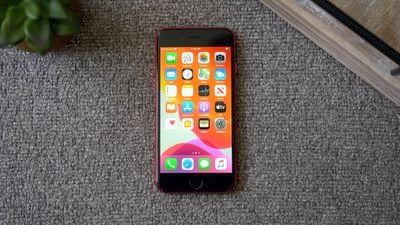
A hard reset basically force-reboots your iPhone, which is useful if the device is freezing, throwing up errors, or has stopped responding completely. DFU mode, on the other hand, restores an iPhone if a reset or standard Recovery Mode doesn't solve the problem you're experiencing.
DFU mode lets the device interface with iTunes, update the firmware and restore the OS without automatically installing the last downloaded version. It's useful for installing older versions of iOS if a beta malfunctions, or if a jailbreak goes bad.
How to Hard Reset iPhone SE (2020 & 2022 Models)
The following button presses should be done in quick succession, one after the other.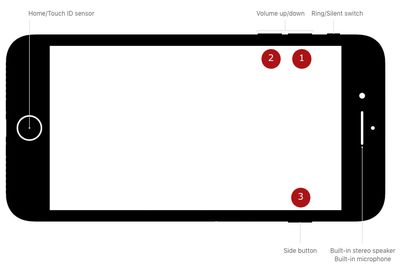
- Press and quickly release the Volume Up button.
- Press and quickly release the Volume Down button.
- Finally, press and hold the Side button (aka power) until you see a black screen, then release.
After about 10 seconds of holding the Side button, your iPhone SE will force restart.
How to Activate DFU Mode on iPhone SE (2020 & 2022 Models)
- Turn on your iPhone if it isn't already.
- Connect it to your computer using a Lightning to USB cable.
- On your iPhone, press the Volume Up button immediately followed by the Volume Down button.
- Next, press and hold the Side button (or power button) until your iPhone's screen turns black.
- Release the Side button and then hold down both the Side button and Volume Down button together for approximately five seconds.
- Now release the Side button, but continue to press the Volume Down button. The screen should remain black.
- Wait for Finder to automatically launch. You'll see a message prompt saying Your Mac has detected an iPhone in recovery mode. You must restore this iPhone before it can be used." If you don't see the message, repeat the steps above.
Once you've closed the Finder recovery prompt you can go ahead and restore your iPhone back to factory settings by selecting Restore iPhone on the iPhone Recovery Mode screen. Once restored, your iPhone will automatically exit out of DFU mode and boot up to its activation screen.
How to Exit DFU Mode on iPhone SE (2020 & 2022 Models)
If you enabled DFU mode and want to manually exit out of it, here's how it's done.
- Press the Volume Up button on your iPhone and quickly release it.
- Press the Volume Down button and release it.
- Press and hold the Side button until the Apple logo appears on your iPhone's screen.
Your iPhone should now have exited DFU recovery mode.



















